Để bắt đầu tạo đơn hàng, người dùng đăng nhập hệ thống và thực hiện theo một trong hai cách sau:
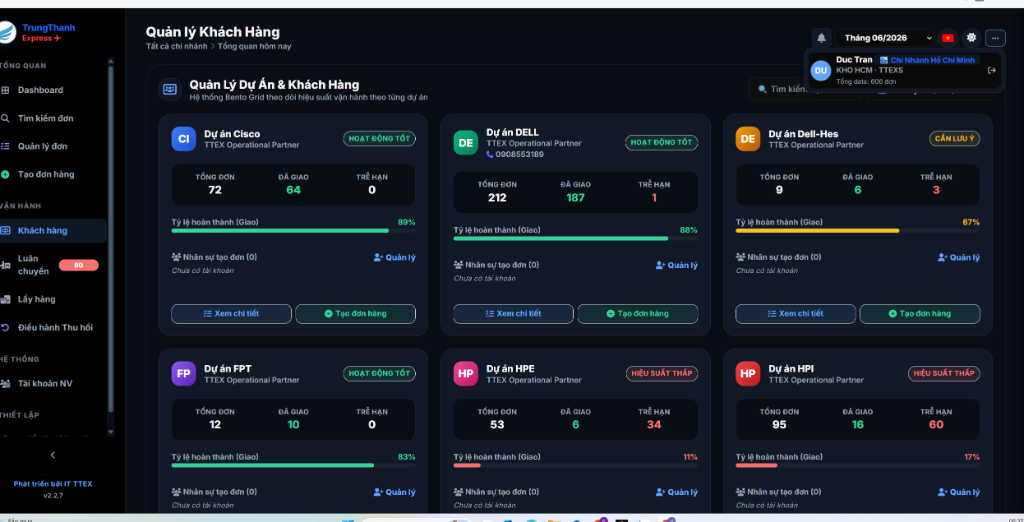
- Cách 1: Tại màn hình Dashboard, nhấp chọn nút
+ Tạo đơn hàng màu xanh lá trên thẻ của dự án tương ứng (ví dụ: Cisco, DELL, Dell-Hes, FPT, HPE, HPI...).
- Cách 2: Chọn mục
Tạo đơn hàng từ thanh menu bên trái (Sidebar).
Giao diện Dashboard với các nút Tạo đơn hàng trực tiếp theo từng dự án.
Đây là yếu tố quan trọng nhất để hệ thống nhận diện và điều phối luồng hành trình (stepper) chính xác cho đơn hàng:
- Hàng nguyên vẹn (GOOD): Dùng cho Đơn giao hàng (Cung cấp thiết bị mới cho khách). Hệ thống hiển thị stepper hành trình giao hàng tiêu chuẩn (Nhập Kho → Phân Hàng → Đã Giao).
- Hàng thu hồi lỗi (DEF): Dùng cho Đơn thu hồi / Trả xác hỏng (Thu thiết bị hỏng từ khách về kho). Hệ thống tự động chuyển sang cấu trúc các bước thu hồi (Nhận yêu cầu → Phân shipper → Đã lấy → Đã hoàn trả kho/khách).
Trên giao diện tạo đơn, trường này được cấu hình tại ô lựa chọn Loại hàng hóa với hai tùy chọn: Hàng nguyên vẹn (GOOD) hoặc Hàng thu hồi lỗi (DEF).
1️⃣ Nhập thông tin người gửi: Hệ thống tự động điền dựa trên tài khoản đang đăng nhập hoặc dự án đã chọn.
2️⃣ Nhập thông tin người nhận: Nhập Họ tên, SĐT nhận. Tại ô tìm kiếm địa chỉ, gõ tên đường/địa chỉ và chọn gợi ý để hệ thống tự điền Tỉnh/Thành, Phường/Xã tự động qua API Track-Asia.
3️⃣ Hàng hóa & Dịch vụ: Chọn Loại hàng, số lượng, trọng lượng. Tick chọn dịch vụ CPN hoặc Hỏa tốc. Có thể tick thêm Đồng kiểm.
4️⃣ Gửi đơn hàng: Nhấn Yêu cầu lấy hàng (chờ Shipper đến lấy) hoặc Nhập thẳng kho (hàng đã ở kho TTEX, chuẩn bị đi giao).
Sử dụng khi bạn muốn shipper vừa đi giao một thiết bị mới, vừa thu hồi lại thiết bị hỏng tại cùng địa chỉ.
- Nhập thông tin giao hàng bình thường như đơn thường.
- Tại bảng thông tin dịch vụ, tick chọn vào ô dịch vụ ♻️ THU HỎNG (Return Defective).
- Bấm Yêu cầu lấy hàng hoặc Nhập thẳng kho.
Cơ chế tự động: Hệ thống tự sinh 2 đơn song song: Đơn giao gốc (ví dụ: TTEX123) và Đơn thu hồi đuôi DH (ví dụ: TTEX123DH). Đơn DH được tự động đảo chiều Người gửi/Nhận và thiết lập loại hàng là DEF.
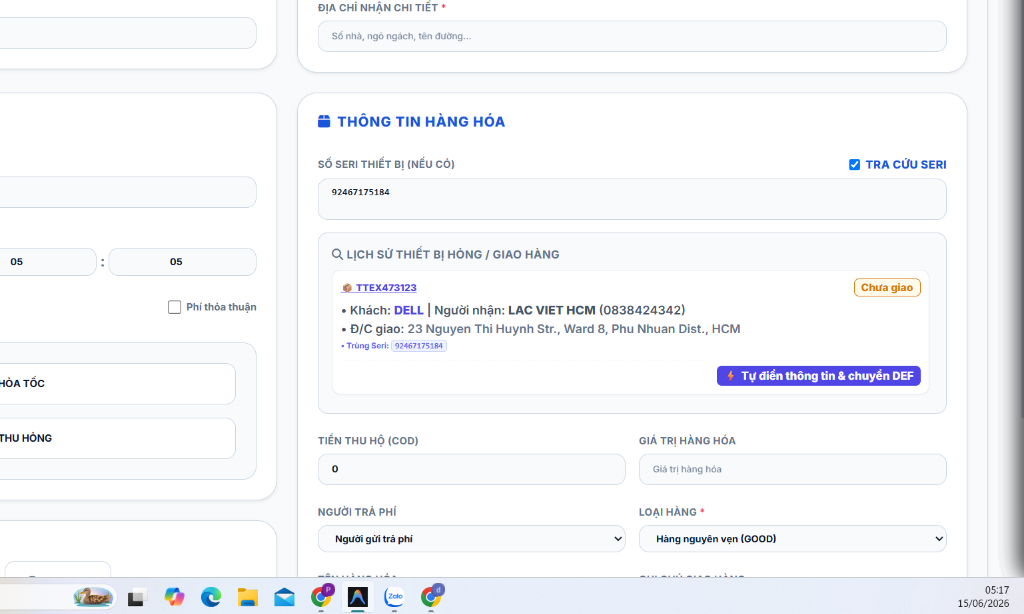
Khi cần thu hồi riêng lẻ thiết bị hỏng, bạn gõ Seri thiết bị lỗi để hệ thống tự điền toàn bộ địa chỉ khách hàng cũ:
1️⃣ Nhập số Seri thiết bị cần thu hồi (Ví dụ: 92467175184).
2️⃣ Tích chọn ô checkbox TRA CỨU SERI kế bên.
3️⃣ Nhấp chọn nút ⚡ Tự điền thông tin & chuyển DEF từ danh sách lịch sử vận đơn tìm thấy.
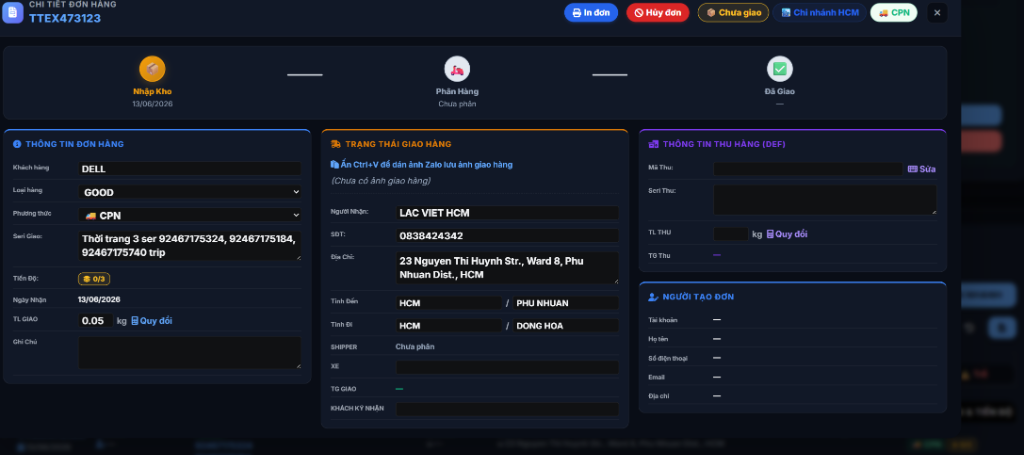
4️⃣ Hệ thống tự động đảo chiều thông tin người nhận cũ và điền vào form, đổi loại hàng thành DEF. Nhấn gửi đơn để hoàn tất.
Nếu thiết bị chưa từng được giao trên hệ thống hoặc không muốn tra cứu: Chọn + Tạo đơn hàng → Nhập tay thông tin khách trả máy vào phần Người gửi → Nhập thông tin kho nhận vào phần Người nhận → Chọn Loại hàng là Hàng thu hồi lỗi (DEF) → Nhập Seri và gửi đơn.
- Tự động lưu (Auto-Save): Thông tin liên hệ mới được lưu lại trên đám mây khi tạo đơn thành công.
- Gợi ý & Điền nhanh (Autocomplete): Khi gõ Họ tên hoặc SĐT, bảng gợi ý xuất hiện. Nhấp chọn để tự điền 100% địa chỉ.
- Sổ địa chỉ: Nhấp chọn nút 📋 Sổ địa chỉ cạnh tiêu đề "Thông tin người nhận" để xem danh sách liên hệ, lọc theo tab hoặc xóa liên hệ lỗi.
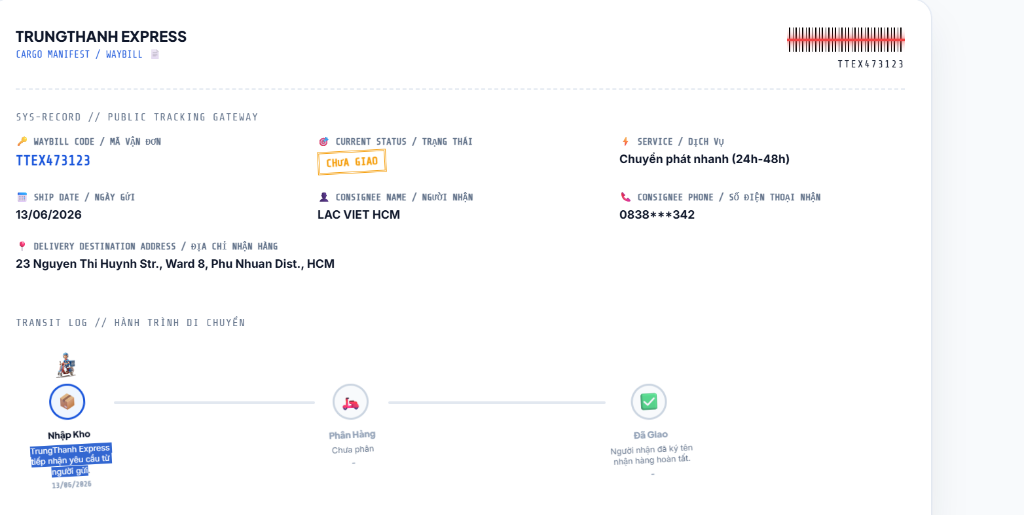
Hành trình đơn hàng hiển thị trực quan dạng thanh ngang kèm ảnh Shipper đi scooter di chuyển realtime. Nếu đơn gặp sự cố lỗi giao/nhận (Chưa giao/Chưa nhận hàng), bước tương ứng sẽ hiển thị biểu tượng cảnh báo ⚠️ kèm lý do chi tiết và lịch hẹn lại mới nhất.
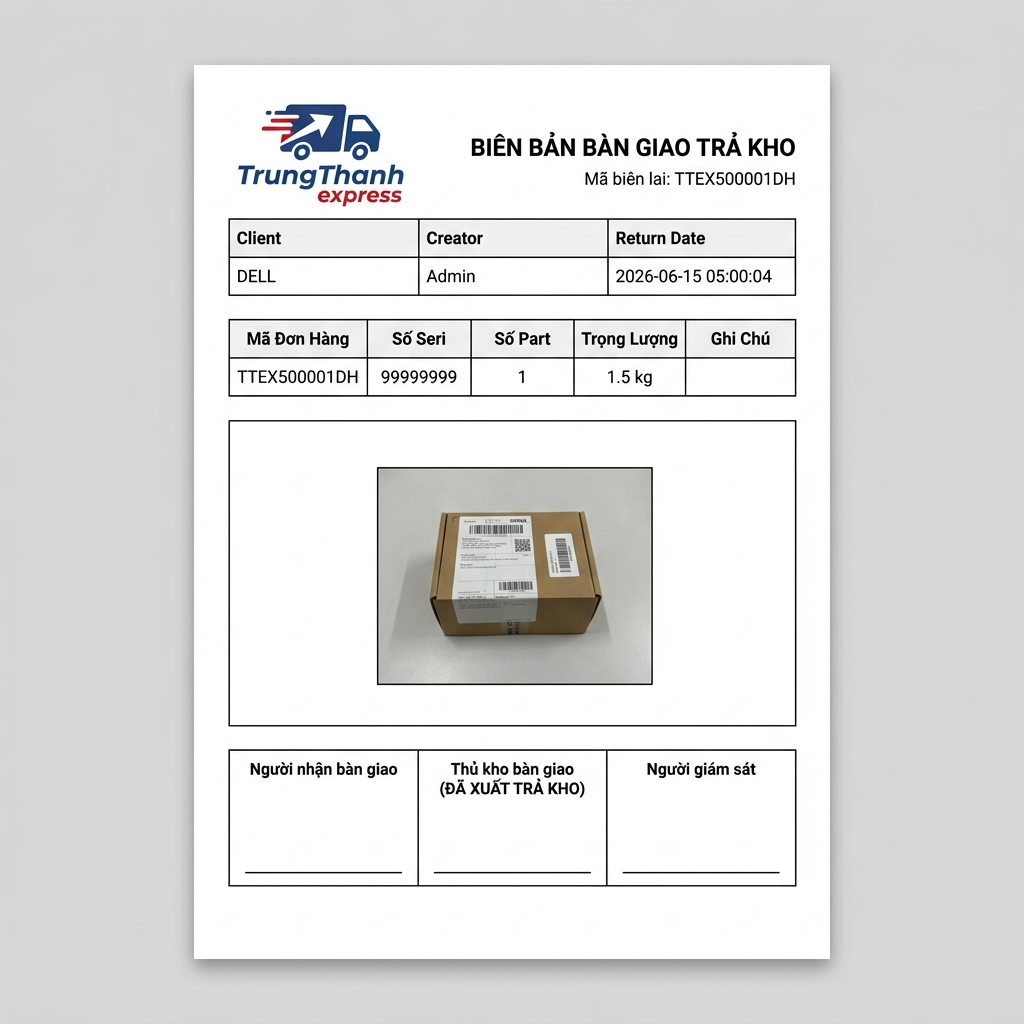
Sau khi thu hồi thành công, thủ kho dùng menu Điều hành Thu hồi để nhập kho. Khi trả đối tác dự án, hệ thống kết xuất ra Biên Bản Bàn Giao Trả Kho chuyên nghiệp kèm ảnh chụp thực tế thiết bị.
To start creating an order, log in to the system and choose one of the following methods:
- Method 1: On the Dashboard, click the green
+ Create Order button on the card of the corresponding project (e.g. Cisco, DELL, Dell-Hes, FPT, HPE, HPI...).
- Method 2: Select the
Create Order item from the left sidebar menu.
Dashboard interface with direct Create Order buttons for each project.
This is the most critical factor for the system to identify and route the correct timeline (stepper) for the order:
- GOOD (Intact Goods): Used for standard delivery orders (supplying new devices to customers). The system displays a standard delivery stepper (Warehouse In → Sorting → Delivered).
- DEF (Defective Return): Used for defective return/recovery orders (retrieving broken devices from customers). The system automatically switches to the recovery stepper (Receive request → Assign shipper → Picked up → Returned to warehouse/client).
On the order creation interface, configure this in the Goods Type select box with two choices: Intact Goods (GOOD) or Defective Return (DEF).
1️⃣ Sender Information: Automatically filled based on the logged-in account or selected project.
2️⃣ Recipient Information: Enter recipient Name and Phone. In the address search bar, type the street name/address and choose the suggestion to auto-fill the Province, District via Track-Asia API.
3️⃣ Goods & Services: Select Goods Type, quantity, weight. Check CPN (Standard) or Express. You can also select Inspection.
4️⃣ Submit Order: Click Request Pickup (waiting for Shipper) or Warehouse In (goods are already at TTEX warehouse, ready to deliver).
Used when you want the shipper to deliver a new device and retrieve a defective device from the customer's address simultaneously.
- Enter sender, recipient and goods info as a standard order.
- In the services section, check the box for ♻️ RETURN DEFECTIVE (Thu hỏng).
- Click Request Pickup or Warehouse In.
Automatic system mechanism: The system automatically spawns two parallel orders: the original delivery order (e.g. TTEX123) and a return order ending in DH (e.g. TTEX123DH). The DH order has its Sender/Recipient fields automatically reversed and its goods type set to DEF.
When retrieving a defective device independently, enter the Serial number to let the system autofill the customer's past address:
1️⃣ Enter the Serial number of the defective device to retrieve (e.g. 92467175184).
2️⃣ Check the SERI LOOKUP checkbox next to it.
3️⃣ Click the purple button: ⚡ Autofill & convert to DEF from the found history.
4️⃣ The system automatically reverses contact info, autofills the form, and sets type to DEF. Click submit order to complete.
If the device has never been shipped on the system or you don't want to lookup: Click + Create Order → Manually enter customer details in the Sender section → Enter warehouse details in the Recipient section → Set Goods Type to Defective return (DEF) → Enter Serial and submit.
- Auto-Save: New contact details are automatically saved to your cloud database when order is created successfully.
- Autocomplete: Typing Name or Phone displays matches. Click to autofill 100% of address details.
- Address Book: Click the 📋 Address Book button next to recipient title to view contact lists, filter tabs, or delete obsolete entries.
The order progress timeline displays a horizontal bar with a floating, animated Shipper riding a scooter. If delivery or return fails (e.g. no answer, reschedule), the corresponding step displays a ⚠️ warning icon with detailed reasons and the rescheduled timestamp.
Upon successful return, the warehouse staff uses the Return Management menu to receive. When returning devices to the project client, the system generates a professional Warehouse Return Receipt with attached device photos.